Skip to content

Guides / How to build

How to build an AI chatbot for your website

A chatbot that answers visitors from your own pages and docs, captures leads, and embeds on any site with one snippet.

Build this in Something5 steps · ~15 min to embedded · Updated October 12, 2026

A website chatbot earns its place when it answers the questions your visitors actually ask, from your own content, and turns the interested ones into leads. The generic "How can I help you today?" bubble that can't answer anything does the opposite.

What you're building

  • A chat agent that answers from your website pages, FAQ and docs
  • Lead capture: name, email, company and what they need, saved to a table you can see
  • A notification to Slack or email for every new lead
  • An embed snippet that drops it onto any site: Webflow, WordPress, Framer, Shopify or your own code

Should you build one or buy one?

OptionGood forThe catch
Live chat with humansLow traffic, high-touch salesSomeone has to be online
Chatbot SaaSStandard FAQ botsPer-seat or per-conversation pricing; templated behaviour
Build your own in SomethingAnswers from your content + your own lead flowYou maintain the knowledge (it's just documents)

Mistakes to avoid

  • A greeting with nothing behind it. "How can I help?" with no knowledge loaded loses visitors fast. Load your FAQ and pricing before you embed.
  • Asking for an email in the first message. Answer the question first; ask for contact details once the visitor has shown interest.
  • Forgetting to update it. When pricing or plans change, update the one facts document so the chatbot doesn't quote last quarter's numbers.

How to build it, step by step

  1. Step 1

    Describe the chatbot

    Say what it answers, what it should recommend, and when to ask for contact details. The starter prompt below is a good base for a B2B site; for a shop, swap lead capture for order questions.

    Step 1: Describe the chatbot
    Fig 01 — Describe the chatbot
  2. Step 2

    Add your content as its knowledge

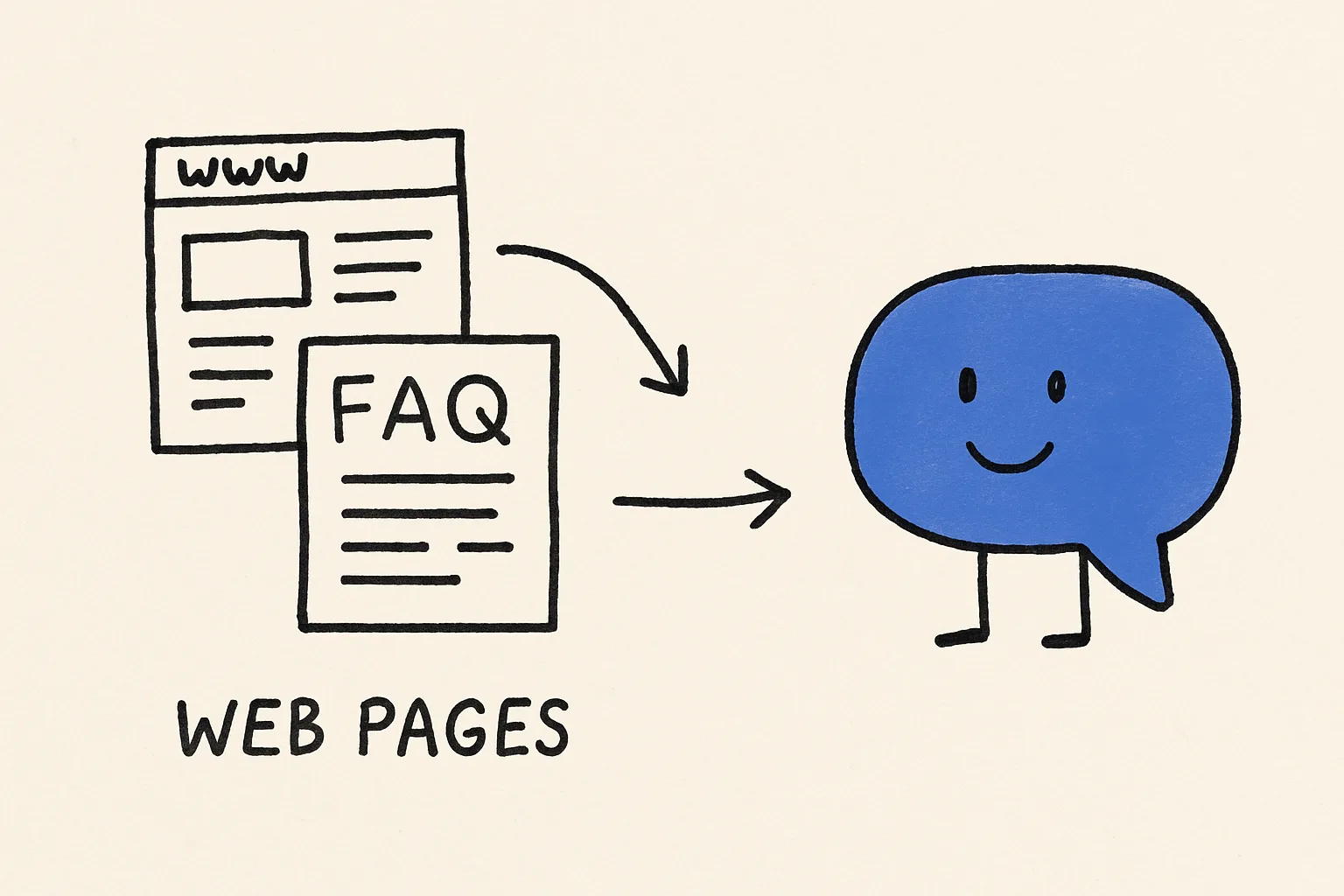
    Upload your FAQ, pricing page, policies or product docs. Keep a single "facts" document current. When your pricing changes, update one file and the chatbot is current.

    Step 2: Add your content as its knowledge
    Fig 02 — Add your content as its knowledge
  3. Step 3

    Decide what happens with leads

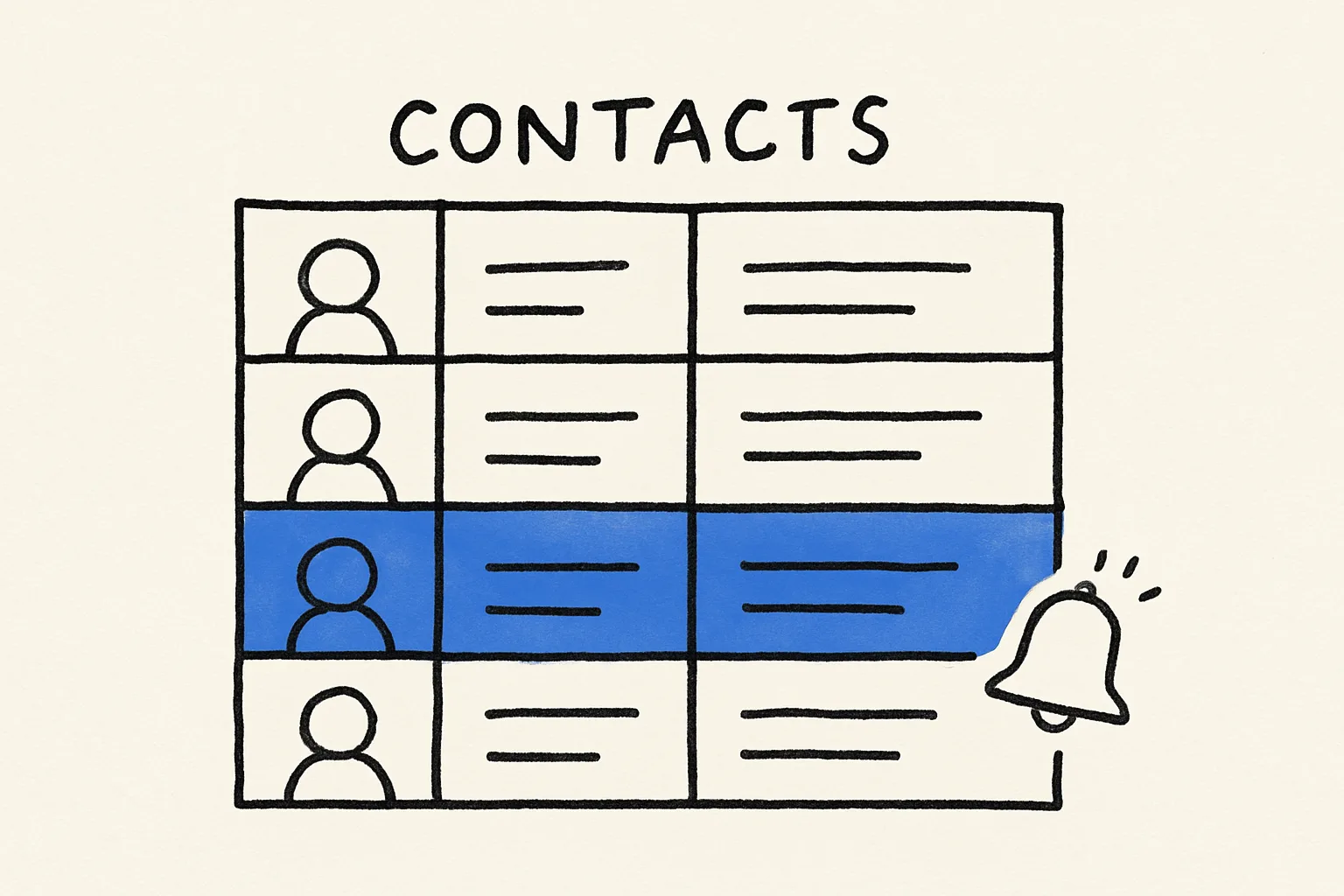
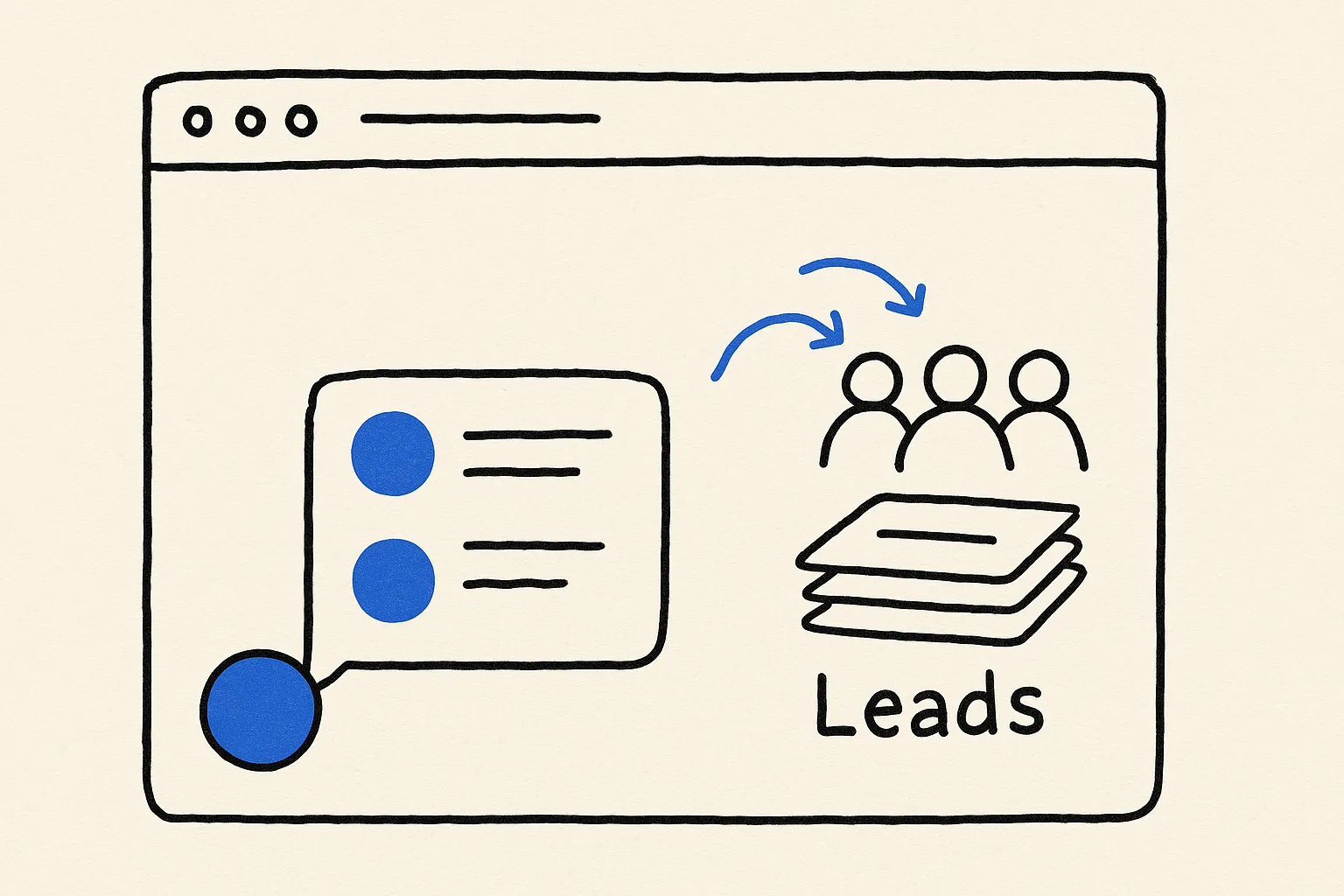
    Leads are saved to a table inside the app automatically. Connect Slack or Gmail to get notified, or HubSpot if you want them in your CRM.

    Step 3: Decide what happens with leads
    Fig 03 — Decide what happens with leads
  4. Step 4

    Test the questions people really ask

    Paste in real questions from your inbox or sales calls. Check it answers from your content and says so honestly when something isn't covered.

    Step 4: Test the questions people really ask
    Fig 04 — Test the questions people really ask
  5. Step 5

    Embed it on your site

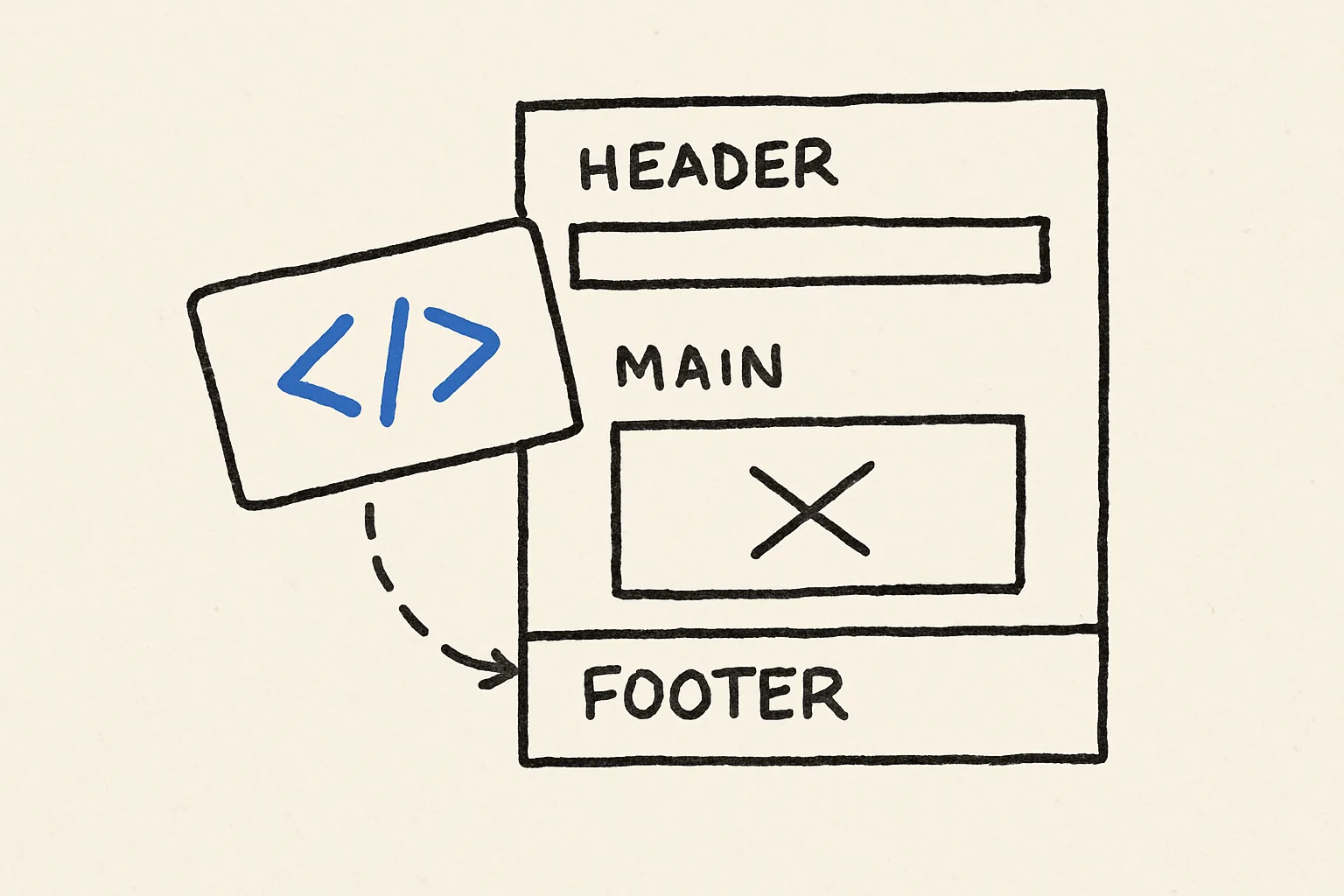
    Publish, then copy the embed snippet and paste it into your site's footer or custom-code section. It renders edge-to-edge in an iframe, so it works on any website builder.

    Step 5: Embed it on your site
    Fig 05 — Embed it on your site

The prompt to start from

Paste this in, then make it yours

Build a chatbot for my website. It answers visitor questions using our website pages and FAQ document, recommends the right plan based on what they tell me about their team, and when someone is interested it collects their name, work email and company and saves them as a lead. Send each new lead to our #sales Slack channel. Keep answers short and friendly.

Common questions

Will it work on Webflow, WordPress or Shopify?

Yes. It embeds as an iframe snippet, so any site that lets you add custom HTML can host it.

Where do the answers come from?

From the documents you give it as a knowledge base, plus the instructions you write. Tell it to say when something isn't covered rather than guess.

Can it capture leads?

Yes. Ask it to collect contact details when a visitor shows interest. Leads are stored in the app's own table and can be sent to Slack, Gmail or HubSpot.

Do I need to code?

No. The only technical step is pasting one embed snippet into your site, which every website builder supports.

Can the same bot answer on WhatsApp or the phone?

Phone, yes: attach a number and the agent answers calls by voice. For other channels, check the integrations list for what's supported today.

More guides

Build it in the next ten minutes

Start with a sentence. Leave with a working app on its own URL.

How to Build an AI Chatbot for Your Website (No Code) · Something